The Checkout Trap
Repair the shared checkout components so keyboard and screen reader users can complete a purchase, on a page where the automated scanner already reports no violations.
Mission Objective
- Complete the checkout end to end using only the keyboard.
- Have every step of that journey announced to a screen reader, including why a submission was rejected.
- Rebuild the size picker as a select-only combobox, so it exposes a role, a name and the size that is chosen.
- Keep the axe-core scan reporting no violations throughout.
Key Learnings
- How to move, hold and restore focus across a modal boundary, and why hiding the background is not the same as putting it out of reach. (Dialog pattern)
- How to build a control that reports its own role, name, value and state, following the select-only combobox pattern.
- How a validation failure actually reaches a screen reader user, through live regions and the attributes that bind a message to its field.
- Why an automated scan can report a clean page that no keyboard or screen reader user can operate. (Understanding WCAG 4.1.2)
Best Suited For
Frontend developers who have run an accessibility scanner before and fixed what it reported. Comfortable with React state, effects and refs, and ready for the faults that no scanner will hand them.
The Story
The homepage is fixed and every automated scan comes back green, so the team declared the problem solved.
The complaints kept arriving, and support has traced all of them to the checkout. One customer adds a pair of shoes to their basket, and the confirmation that appears never receives the keyboard. Their next Tab lands somewhere behind it, on the page it is covering, and they carry on through controls they can no longer see.
Another fills in the delivery details, submits, and is told nothing at all: the error sits on screen in red, and their screen reader never mentions it.
The design team keeps shipping these same patterns, and nobody can see the problem, because the scanner insists there isn't one. Fix the checkout before the next batch of complaints reaches legal.
Architecture
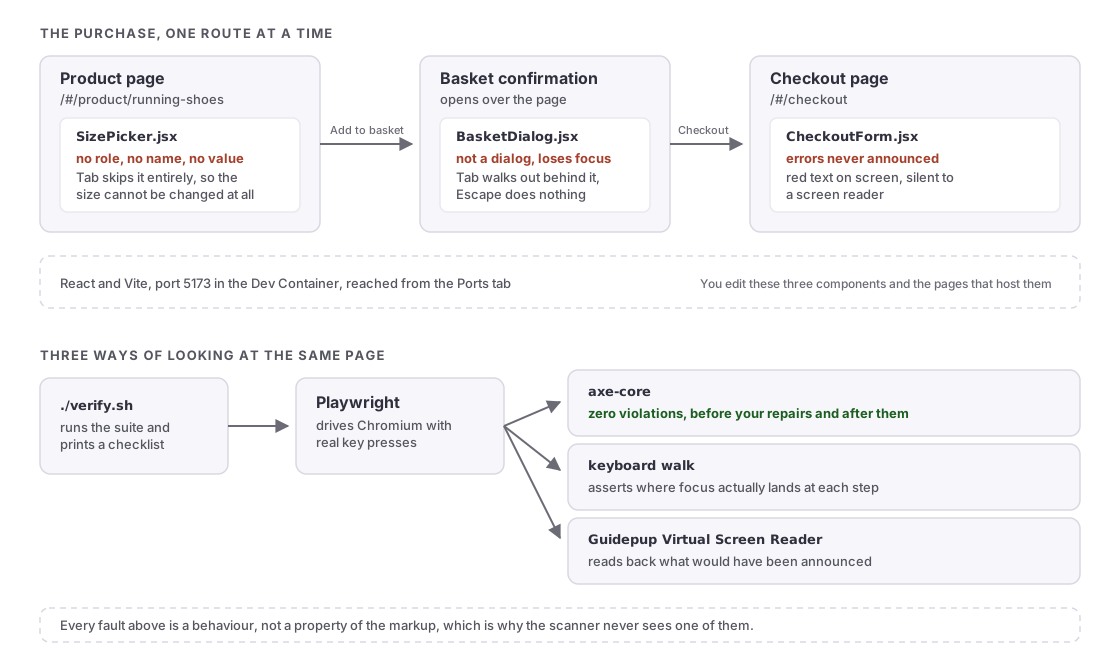
A React and Vite storefront runs on port 5173 inside the Dev Container. The homepage arrives with the beginner level's repairs already applied. The product page and the checkout do not.
Buying something takes two pages. On /#/product/running-shoes you choose a size and add the item to your basket, which opens a confirmation. From there /#/checkout collects the delivery details and places the order.
Three components carry the faults, and all three are what you edit: src/components/SizePicker.jsx, src/components/BasketDialog.jsx and src/components/CheckoutForm.jsx. The pages that host them, src/pages/Product.jsx and src/pages/Checkout.jsx, are yours to change too.
Playwright drives the browser with real key presses and runs the Guidepup Virtual Screen Reader inside the page, reading back the log of what a screen reader would announce. axe-core scans the same page and should stay silent from start to finish.
Leave tests/ and verify.sh alone. They define the required outcomes and should not be weakened or bypassed.
Do not add dependencies. Radix, React Aria and their equivalents solve the panel and the picker in a single import, and reaching for a maintained library is the right call on real work. The ban exists because the exercise is understanding what those libraries do for you. verify.sh checks that the dependency list is unchanged.
Ready to start?
Launch in a preconfigured devcontainerdevelopment container: a portable, reproducible coding environment defined by a configuration file
Free GitHub account required
Walkthrough
Get Started
Open in GitHub Codespaces. The devcontainerdevelopment container: a portable, reproducible coding environment defined by a configuration file is pre-configured and starts automatically. When you push from Codespaces, GitHub forks the repository to your account automatically.
Prefer working locally? Clone the repo and open it in any editor that supports the Dev Containers specification (VS CodeVisual Studio Code, JetBrains, and others). The devcontainer config will be detected automatically.
Start ShopSmart
The storefront is already running. Open the Ports tab in the editor, find ShopSmart on port 5173, and click the globe icon to open it in a browser tab. Codespaces serves it from an address ending in
.app.github.dev, so there is no localhost to visit.If it is not running, start it from the level directory with
make app.Add the product route to whatever address the Ports tab gave you:
<your-codespace>-5173.app.github.dev/#/product/running-shoesUse a browser tab rather than the editor's built-in preview. The preview cannot load the forwarded port while it is private, because the request is sent through GitHub's authentication and a preview pane has no way to complete that.
If you would rather work inside the preview, make the port public first: in the Ports panel, right-click ShopSmart, choose Port Visibility, then Public, and reload the preview. A public port can be reached by anyone who has the URL, so turn it back to Private when you are finished.
On a Mac, turn keyboard navigation on before you start. Safari does not move focus to links and buttons unless it is enabled, under System Settings, Keyboard, Keyboard navigation. Without it Tab appears to do nothing at all here, which looks exactly like a broken page. Chrome and Firefox have it on already.
Buying something takes two pages: choose a size and add to basket there, then go on to /#/checkout to place the order.
Explore the UIs
Open the Ports tab and navigate to each service:
- Port 5173: ShopSmart. The storefront. The product page is at /#/product/running-shoes and the checkout at /#/checkout.
Explore the Broken Checkout
Run the checks first, and notice which one passes:
npm run test:a11yThe axe-core scan is green. It was green before you arrived and it has to stay green, so it will not be telling you what to fix.
Then put the mouse away. From the product page, press Tab and keep pressing it. Try to choose a size. Add the item to your basket and see where the keyboard goes when the confirmation appears, where it goes next, and what happens when you press Escape. Then go on to the checkout and submit the form empty.
To watch it live while you work, add
?listento the end of whatever is in your address bar. It works either side of the route:<your-codespace>-5173.app.github.dev/#/product/running-shoes?listenOr to print the same journey in the terminal:
npm run listenThat walks the same journey and prints the announcements, naming any step that changed the page without telling anyone about it. It grades nothing. Use it as often as you like, and run it again after each repair to see what changed.
Repair the Checkout
Take them smallest first. The checkout form is a handful of attributes and two elements, the basket confirmation is a known pattern, and the size picker is a component to build. Doing them in that order gets you three separate wins before the long one.
Work in:
src/components/CheckoutForm.jsx
src/components/BasketDialog.jsx   with src/pages/Product.jsx
src/components/SizePicker.jsx
One thing is worth knowing before you start, because it costs hours and teaches nothing: a live region that appears at the same moment as its text will never announce. The element has to already be in the document, empty, with its content filled in later. This is a React rendering question rather than an accessibility one.
Everything else is the exercise. Do not add dependencies, and do not weaken the tests.
npm run listenis there throughout, and costs nothing to run.When you are ready:
./verify.shAsk What the Scan Measured
The axe-core scan reported no violations before you started and reports none now. Nothing you fixed was ever visible to it.
What did the scan actually measure, and what would you have to add to catch any of this automatically? That question is the expert level.
Complete Your Challenge
- When you push from Codespaces, GitHub forks the repository to your account automatically. If you are working locally, fork the repository on GitHub before pushing.
- Verify your solution:
If it passes, it generates a Certificate of Completion you can paste into the discussion../verify.sh - Share your solutions in the challenge thread on community.offon.dev.
Completed the challenge? Share your achievement on LinkedIn
Toolbox
- Guidepup Virtual Screen Reader - Produces a text log of what a screen reader would announce. It is a simulation built from the accessibility tree, not NVDA, JAWS or VoiceOver, and it will not reproduce the differences between them. Passing it means the accessibility tree says the right thing, which is necessary but not sufficient. Test with a real screen reader on real work.
- Playwright - Drives real Tab, Escape and arrow presses and reports where focus actually lands.
- axe-core - The automated scanner that reports this page as clean, before and after.
- ARIA Authoring Practices Guide - The reference implementations for the dialog and combobox patterns.